
Mobile apps are not only for online stores and end users. In many companies the most useful app is the one that solves a single concrete task for an employee: finding an item, checking a price or seeing the available quantity while standing next to a warehouse shelf or a product on the shop floor.
Below we show a practical example of a mobile app for working with barcodes, connected to a central business system. The example is based on features we have developed using React Native and a Laravel API, with demonstration visuals.
Why does a company need a mobile app if it already has a web administration panel?
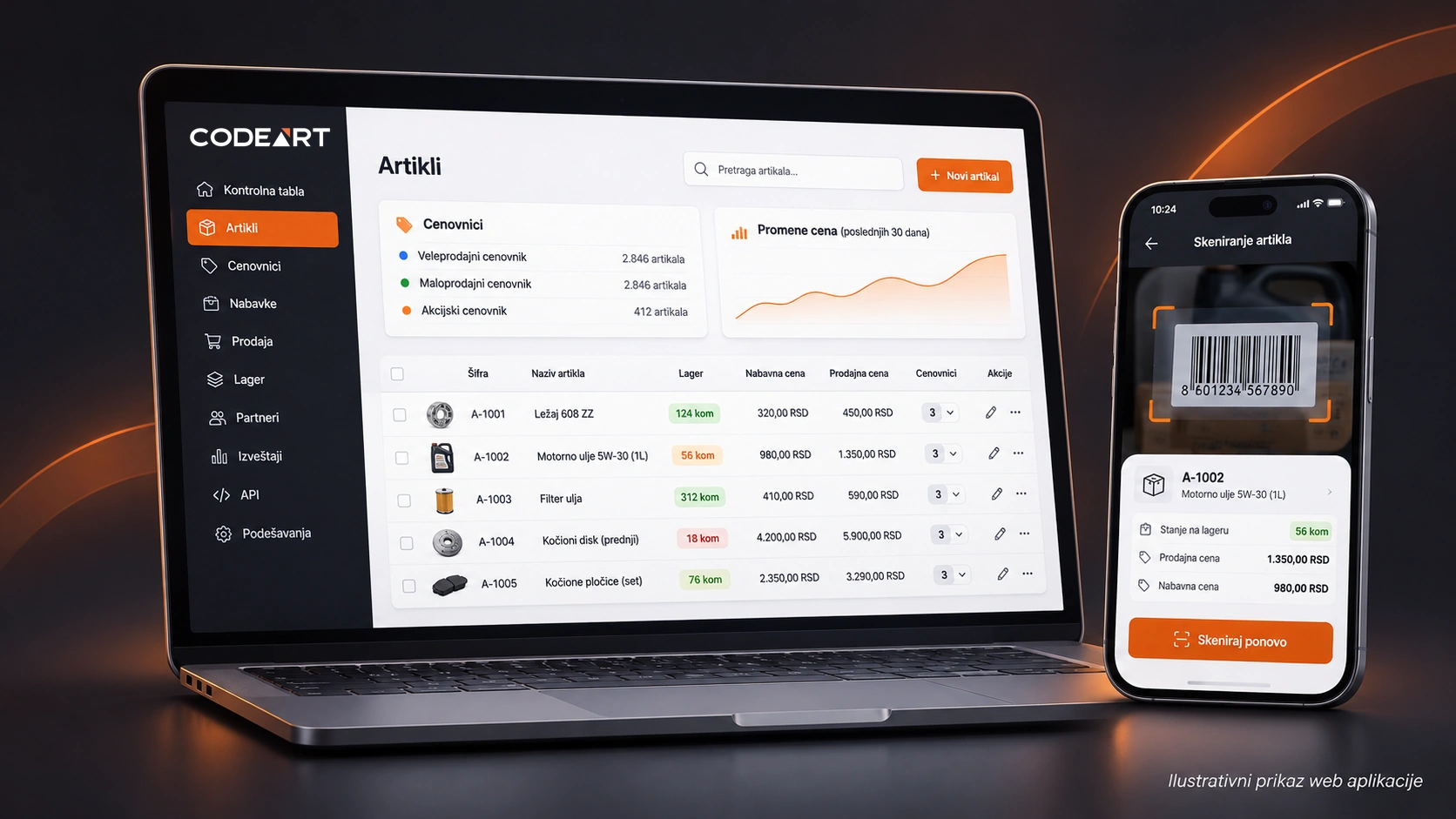
A web administration panel is great for work at a computer: entering and editing items, viewing price lists and maintaining data. However, an employee in the field or in the warehouse often doesn’t have a computer at hand. They need just one piece of information, and they need it right now.
This is where a mobile app has a clear role. It doesn’t have to replace the existing system. On the contrary, it works best as simple mobile access to data the company already maintains.
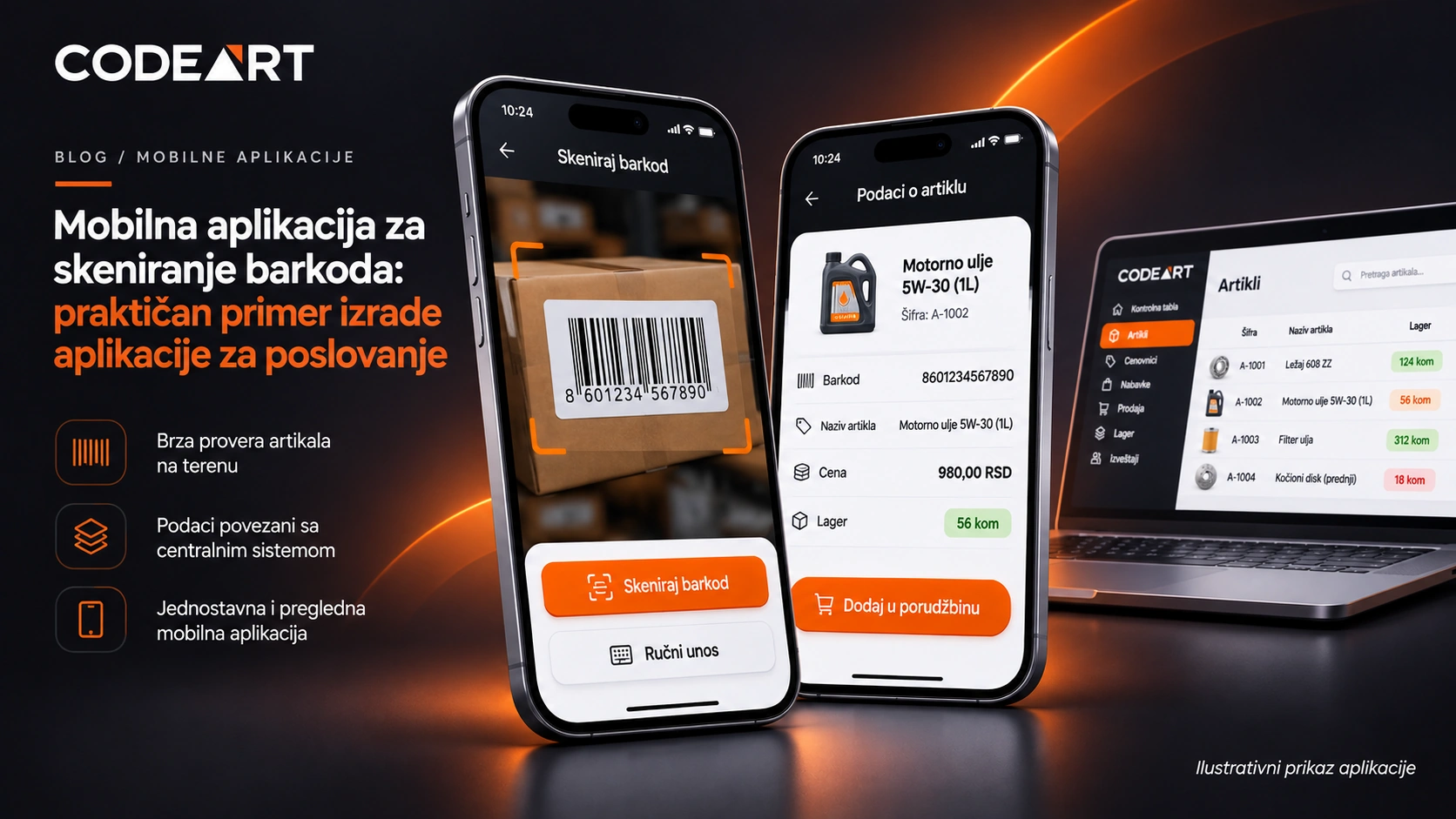
Example app: scanning barcodes with a phone camera
Imagine an employee checking goods. Instead of searching for a product by code or name by hand, they open the app and point the camera at the barcode. Once the app reads it, it looks up the matching item in the central records.
The app also provides manual barcode entry. This matters when a label is damaged, poorly printed or the camera can’t read it properly.
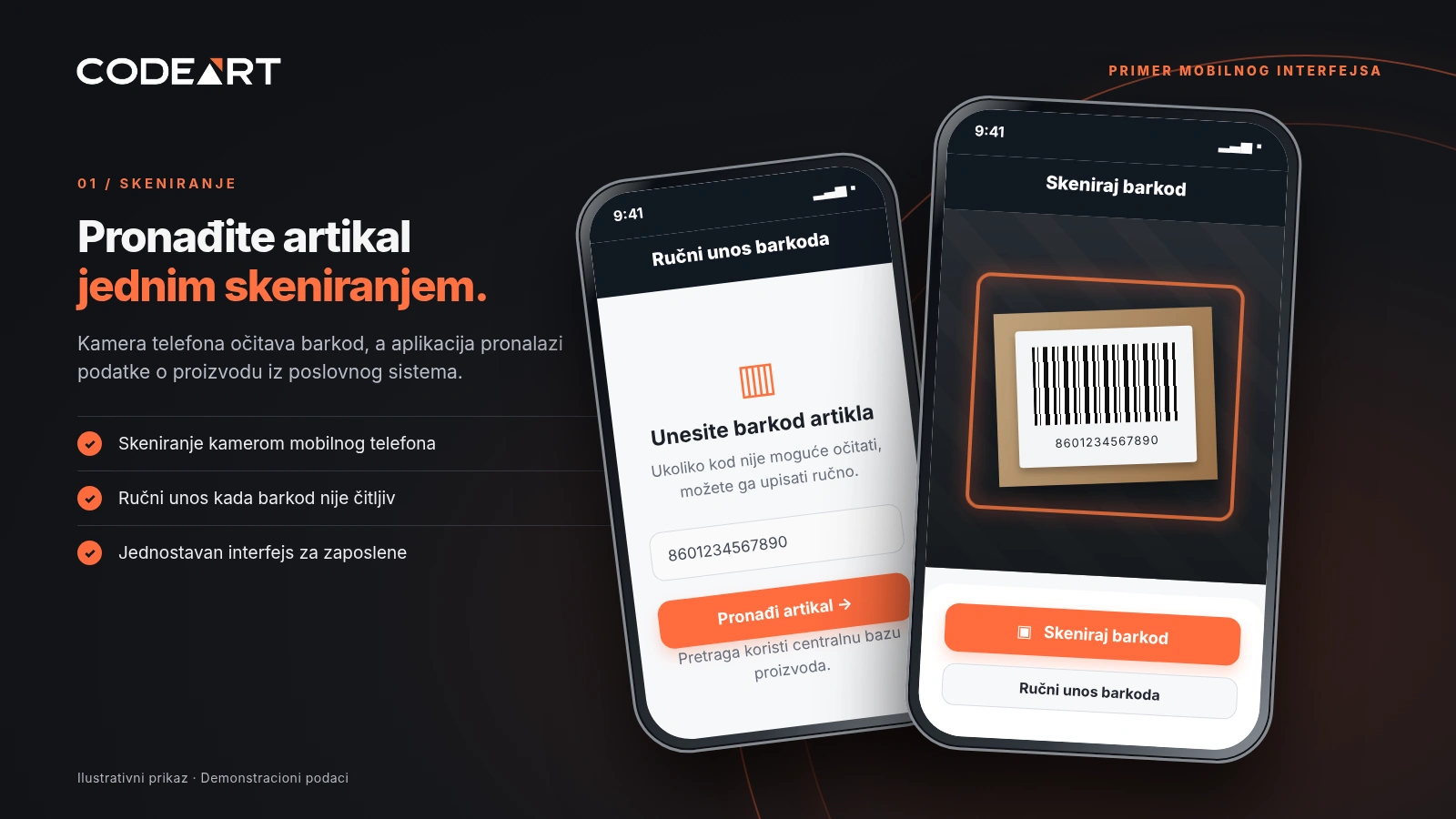
The goal is not a screen full of options, but for the person doing the job to quickly get the data they need. That is why we built it around a small number of clearly defined steps.
What data does the employee get after scanning?
When the app finds the item, it can show the information that matters most to the employee at that moment:
- Barcode – confirmation that the right product was found.
- Item name – a clear identity of the product.
- Packaging unit – information on how the item is managed.
- Price – the value the central system returns for that product.
- Stock – the item’s quantity according to the data available in the system.
This is especially useful when an employee checks several products in a row and wants to avoid switching between different programs or spreadsheets.
How does the mobile app connect to the Laravel system?
The most important part of the solution is not the scanner itself. What matters is where the data comes from. In this example the mobile app doesn’t maintain a separate item database, but gets items from the central system through an API.
- The employee scans the barcode or enters it manually.
- The mobile app sends a query to the Laravel API.
- The backend finds the matching item and prepares the available data.
- The phone shows the name, packaging unit, price and stock level.
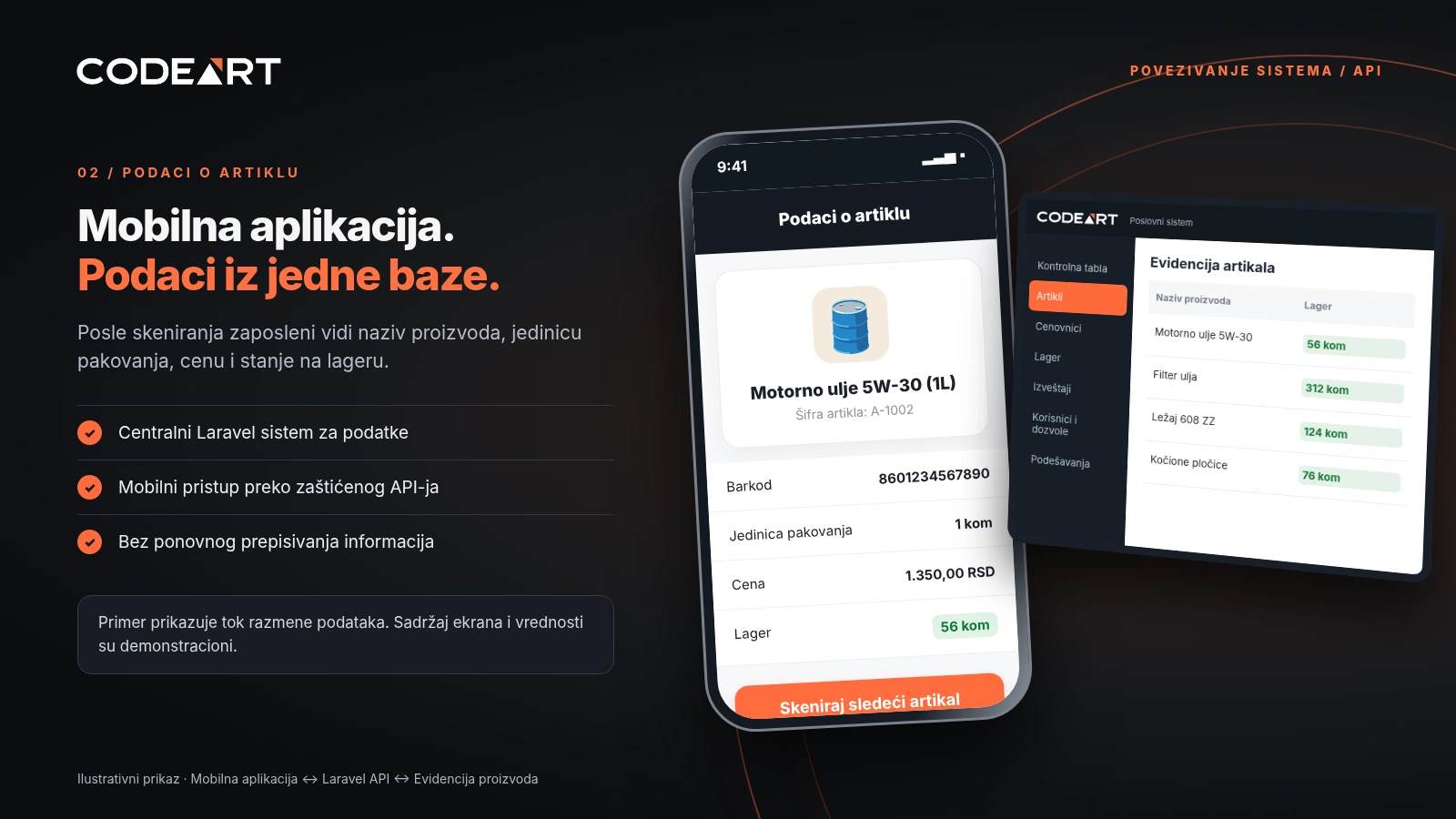
This architecture makes data easier to maintain because the core information stays in one central place. If data in the system changes, the mobile app can pick up the updated values on its next successful request.
Important: The accuracy of the stock shown depends on how up to date the central business system is. The mobile app alone does not guarantee that the physical stock is correct.
What does a single work task look like?
Find the product
The employee scans the barcode on the packaging. If scanning isn’t possible, they use manual entry.
View the data
The app shows the data it received from the central business system.
Move on to the next item
With no retyping of codes into another record, the employee carries on checking goods.
This flow can be the starting point for many different business scenarios. What matters is that features are chosen according to how the company really works, not just according to what the app is technically capable of.
Why is connecting to the existing system more important than the app itself?
If a mobile app stores its data separately, the company quickly ends up with two sources of information. When a product’s name or price changes, an employee may see different values in the administration panel and on the phone.
That is why, when planning a mobile solution, you first need to answer these questions: where is the core data kept, who changes it, how is it retrieved, and what happens when data isn’t available?
Depending on the existing infrastructure, the app can connect to a Laravel web system, an ERP solution, accounting software or another database. Each integration needs to be checked individually, because not all programs support the same way of exchanging information.
Android and iOS: why do we use React Native?
For developing apps like this, one of our choices is React Native with Expo. It lets us build apps for Android and iOS from a shared codebase, with adjustments where a specific platform requires them.
That doesn’t mean testing, setting up camera permissions and publishing to the app stores are automatically done. Each platform requires separate verification before the app is released to users.
In this example Laravel is the server that provides the data, while the React Native mobile app gives the employee a simple way to request and display that data.
Can a mobile app work without internet?
It can, but offline operation is a separate feature that has to be planned. The example shown uses an API to fetch data, so a connection to the server is needed to get up-to-date information.
If it is important for employees to work in places without signal or at remote locations, it is possible to design local data storage and later synchronization. In that case you need to decide what is stored on the device, when changes are sent to the server and how to handle the same data being changed in several places.
Which companies can benefit from a mobile app like this?
The example is especially relevant for companies that check and process a large number of items every day: retailers, distributors, wholesalers, service businesses and companies that organize warehouse work.
Still, not every company needs the same app. For some it is enough to quickly find an item, while others need orders, work orders, photo capture, GPS data or more complex integrations. All of these features are separate requirements and are not included in the basic example.
From idea to a custom mobile app
A good solution starts with understanding employees’ work: where they use the phone, what data they look for most often, and in which situations errors or delays occur.
After that we define the key screens and features, API access, data access rules, a testing plan and the way the app is distributed. Only then can the scope of work be estimated more realistically.
For small and medium-sized businesses it is often more sensible to start from one clear business need and expand the system gradually, rather than building an app with many features that may never be used.
Frequently asked questions about mobile apps for businesses
Is a special device required for barcode scanning?
Not necessarily. A mobile phone with a suitable camera can read supported barcodes through the app. How well scanning works depends on label quality, lighting and the device’s camera.
Does the mobile app need its own database?
No. In this example it uses the central business system and its API. Offline mode may require local storage and later synchronization.
Can the app be connected to an ERP?
Often it can, if the ERP supports a suitable way of connecting. Before the project starts, you need to check the available APIs, the data format and access rules.
How much does an Android and iOS mobile app cost?
The price depends on the number of screens, business rules, integrations, offline operation, testing and the way of distribution. For a useful estimate, you first need to define the features of the first version.
Note: The screens shown are conceptual illustrations based on the type of functionality from practice. They are not literal screenshots of a client’s application, and some visual details serve only to show a possible interface.